wiki
wikiTKmon Set-up
| Please note that this article / this category refers either on older software / hardware components or is no longer maintained for other reasons. This page is no longer updated and is purely for reference purposes still here in the archive available. |
|---|

This article shows how to set up a TKmon 2.1 monitoring system for the first time.
To use TKmon you can either buy a Product not available anymore or install TKmon on an Ubuntu server manually.
Important hint
The monitoring software TKmon is no longer being developed further and the Thomas-Krenn call-home service has also now been switched off.
Login
Open a web browser and log in to TKmon:
-
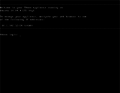 The current TKmon IP address appears on a connected monitor.
 -
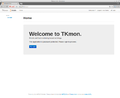 You can reach the TKmon interface using a Web browser after entering the Low Energy Server's IP address.
 -
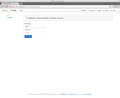 Enter your username and password and click Login.
 -
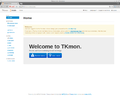 After the first login, a prompt to change the password appears. Click on the appropriate link.


Change the Password
For security reasons, change the password.
-
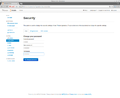 Enter the current password and then enter your new password twice and click on Change Password.
 -
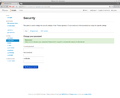 The password has been successfully changed.


Call-Home-Service Set-Up
To use the Thomas Krenn Call-Home-Service perform the following configuration steps:
-
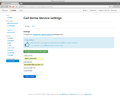 Enter your contact information and the Call-Home Auth-Key.
 -
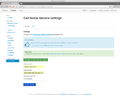 The settings were successfully saved. Icinga must be restarted.
 -
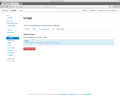 Click Icinga Restart.
 -
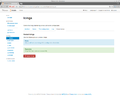 Icinga will be restarted.
 -
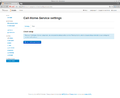 Click the test button in the Call Home area.
 -
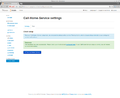 A test email has been sent.
 -
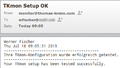 If it is correctly configured, you should have received a test email in your inbox.


SMS Set-up
Attention: In order to use the SMS feature, a CEP CT63 Modem must be connected to your appliance!
-
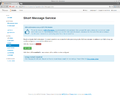 Enable or disable the SMS feature. Be sure to enter a cellphone number when adding a contact.

Contacts Set-up
In the contacts area enter all the recipients, to whom the monitoring system should send alerts to when problems arise:
-
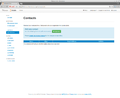 Click on Add New.
 -
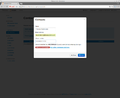 Enter the contact's name and email address and click Save.
 -
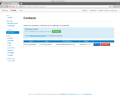 In order for the changes to take effect restart Icinga.


Host Set-up
For each server you want to monitor with TKmon, configure a host in TKmon:
-
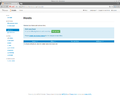 In the Hosts area click New Set-up.
 -
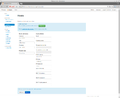 Enter the information about the server. If you want to monitor the IPMI senors of the server, enter the appropriate IPMI user (see Setting IPMI Monitoring User).
 -
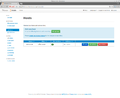 The Host has been set up. Click the Services button to set up services.


Services Set-up
For each configured host you can monitor any services (such as Web servers, file servers, ...) as well as hardware components (such as RAID controllers) that are listed in the TKmon service checks.
To set up such a monitoring configure for the service or the respective component a service in TKmon. The Following example shows how to set up the monitoring of an VMware Host:
-
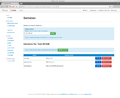 Click on Add Services.
 -
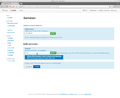 Enter a few characters of the desired service (eg "VMw"), select the appropriate service check and click "Add".
 -
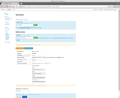 To report hardware problems to Thomas Krenn, leave the Report errors to Thomas Krenn option set to Yes (this server requires an active Call-Home subscription).
 -
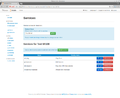 The monitoring of the VMware Host is now configured in TKmon. Restart Icinga now to activate the configuration changes.


Note: Some service checks must be able to perform commands on the monitored server for the monitoring (for example to monitor CPU load, or for monitoring RAID controllers). For information about setting up such a service check on each server, see the articles Icinga NRPE Plugin and Install and configure NSClient++ under Windows.
Linux Host NRPE sample check
The configuration of a service check based on NRPE is similar to a local check.
-
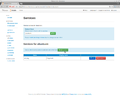 Click on "Add Service.
 -
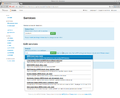 To view all NRPE checks, type the string "nrpe" in the input field. Select the appropriate service check and click Add.
 -
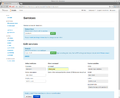 With this NRPE check you can check a self-defined command. In this example the system load of a client will be checked by the command "check_load". Choose a suitable description for your command. Click on save and reload icinga afterwards.


Windows Host nsclient sample check
Unlike the linux host, the execution of the windows checks in TKmon is done by check_nt, not NRPE.
-
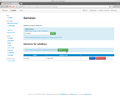 Click on "Add Service.
 -
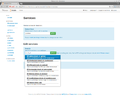 To view all NRPE checks, type the string "check_nt" in the input field. Select the appropriate service check and click Add.
 -
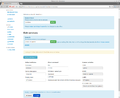 This one checks the installed version of the NSClient++ application of the client. Click on save and reload icinga afterwards.


Service Status
In the Service Status you can check the current status (it will take a few minutes until the first check is performed after the new services are configured):
-
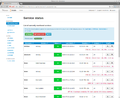 You can use the buttons "Problems only" and "All" to narrow down the displayed services depending on the status.

Install Updates
Updates can easily be applied from the TKmon web interface:
-
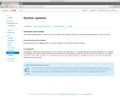 The dialog updates presents some general information about updates.
 -
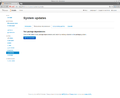 Test your package dependencies here.
 -
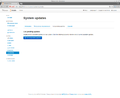 Click "List pending updates" to view the pending updates. Updates will not be installed in this step.
 -
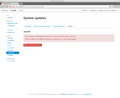 Click "Upgrade" and "Yes, upgrade my system" to install updates.


 |
Author: Werner Fischer Werner Fischer, working in the Knowledge Transfer team at Thomas-Krenn, completed his studies of Computer and Media Security at FH Hagenberg in Austria. He is a regular speaker at many conferences like LinuxTag, OSMC, OSDC, LinuxCon, and author for various IT magazines. In his spare time he enjoys playing the piano and training for a good result at the annual Linz marathon relay.
|