wiki
wikiSetting the LSI RAID Monitoring Plugin on a 2012 Windows Server
| Please note that this article / this category refers either on older software / hardware components or is no longer maintained for other reasons. This page is no longer updated and is purely for reference purposes still here in the archive available. |
|---|
This article illustrates how an LSI Raid Controller on Windows in monitored with Icinga/Nagios LSI RAID Monitoring Plugin check_lsi_raid. The Windows version used in the following example is a 64bit 2012 Windows Server, but the instructions can be applied analogously to other versions of Windows.
Important hint
The monitoring software TKmon is no longer being developed further and the Thomas-Krenn call-home service has also now been switched off.
Required Software
The following software components are required on the Windows system:
- nsclient++: Installing and configuring NSClient++ on Windows
- StorCLI: Manual StorCLI
- Strawberry Perl: Installing Strawberry Perl on Windows
- check_lsi_raid Plugin: LSI RAID Monitoring Plugin
Installation Instructions
-
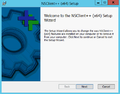 Install nsclient++ as described in Installing and configuring NSClient++ on Windows. The option allow users to write config file facilitates later configuration of NRPE.
 -
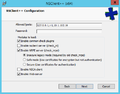 Under Allowed Hosts, the IP address entered is monitored by the subsequent Windows host. This is typically the IP address of the host running Icinga.
 -
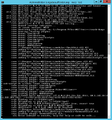 Start nsclient++ in test mode and check the connection from the Icinga Server (see Nsclient++, section Plugin Testing).
 -
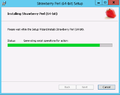 Install Perl as described in the article Installing Strawberry Perl on Windows.
 -
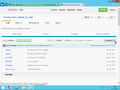 Download the LSI RAID Monitoring Plugin from https://github.com/thomas-krenn/check_lsi_raid.git.
 -
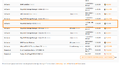 Download the command line tool StorCLI and save it to any directory.
 -
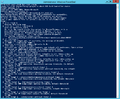 Test Perl together with the Perl script check_lsi_raid. The parameter -p at check_lsi_raid is similar to the full path to the storcli.exe.


NRPE Configuration
After completing the installation steps described above, add the following lines to the file C:\Program Files\NSClient++\nsclient.ini:
; Section for NRPE (NRPEServer.dll) (check_nrpe) protocol options.
[/settings/NRPE/server]

; COMMAND ARGUMENT PROCESSING - This option determines whether or not we will allow clients to specify arguments to the commands that are executed.
allow arguments = true

; Section for external scripts configuration options (CheckExternalScripts).
[/settings/external scripts]

; COMMAND ARGUMENT PROCESSING - This option determines whether or not we will allow clients to specify arguments to the commands that are executed.
allow arguments = true

[/settings/external scripts/scripts]
check_lsi_raid=C:\\strawberry\\perl\\bin\\perl.exe C:\\LSI\\check_lsi_raid -C 0 -p C:\\LSI\\StorCLI64.exe
The path from "/settings/external scripts/scripts" are similar to the paths where check_lsi_raid and StorCLI64.exe are located.
-
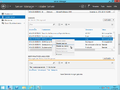 Finally, restart the nsclient++.

Test using Icinga Server
The plugin check_nrpe accesses Windows Server check_lsi_raid using NRPE:
:~# /usr/lib/nagios/plugins/check_nrpe -H 10.1.102.183 -c check_lsi_raid
OK (CTR, LD, PD, CV)|CV_Temperature=27;70;85 ROC_Temperature=62;80;90
 |
Author: Thomas Niedermeier Thomas Niedermeier working in the product management team at Thomas-Krenn, completed his bachelor's degree in business informatics at the Deggendorf University of Applied Sciences. Since 2013 Thomas is employed at Thomas-Krenn and takes care of OPNsense firewalls, the Thomas-Krenn-Wiki and firmware security updates.
|