

 wiki
wikiIntel Data Center Manager
| Please note that this article / this category refers either on older software / hardware components or is no longer maintained for other reasons. This page is no longer updated and is purely for reference purposes still here in the archive available. |
|---|
The Intel Data Center Manager is a power and temperature management solution for data centers. With the Intel DCM, you can easily monitor power consumption and temperature in your data center and manage your rack inventory. This software is a Java application developed for Apache Tomcat and PostgreSQL and runs on Windows and Linux-based operating systems. This article gives an overview of the features of the Intel DCM and shows the basic configuration.
Features
This section provides an overview of the functions and features of the Intel Data Center Manager.[1]
Supported servers and devices
The Intel Data Center Manager supports a variety of manufacturers and devices. A list of all supported devices can be found in the following link:
- Intel Data Center Manager Supported Servers (intel.com)
Compatibility
Intel DCM can be installed on the following operating systems:
| Operating System | Compatible versions |
|---|---|
| Windows |
|
| Red Hat Enterprise Linux |
|
| Novell SUSE Linux Enterprise Server |
|
| Ubuntu Server |
|
| CentOS |
|
| Debian |
|
User guide
Intel offers a detailed user guide as PDF for download:
- DCM_Console_User_Guide.pdf (software.intel.com)
Installation and upgrade
Information about installing and upgrading the Intel DCM can be found in the following two articles:
Configuration
The following sections show a basic configuration of a data center with one room, one row, and one rack. Several servers are then added to this rack and their properties adjusted.
Basic settings
Basic settings for the Intel Data Center Manager can be made in the Settings menu of the left menu tree:
-
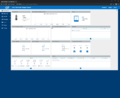 After the Login to the web interface you will be redirected to the dashboard.
 -
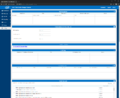 Change to Settings in the left menu tree. In this menu you can e.g. change the password, create users or create e-mail subscriptions.
 -
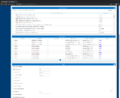 Scrolled further down, it is possible to customize predefined events, edit power profiles or connect to an LDAP server.
 -
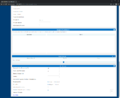 The Miscellaneous section allows the adaptation of different options, e.g. the unit of temperature.


Creating a data center
To be able to monitor servers and devices with the Intel Data Center Manager, you must first create a data center. To do this, follow the steps below:
-
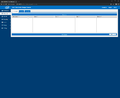 Change to Hierarchy in the left menu. Click on the blue + sign in the Data Center area.
 -
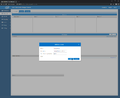 Assign the 'new data center a unique name and a total capacity in watts. Then click on OK.
 -
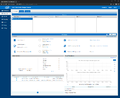 Now a Data Center has been created, go to the Room area and add a room in the Data Center with +.
 -
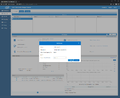 Enter a unique name, a total capacity in watts and a position in the data center for the new room. Then click on OK.
 -
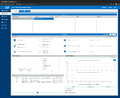 The room has been created, now a row can be created in the room, click on the + in the Row area.
 -
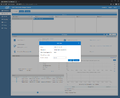 Give the new row a unique name, a total capacity and the default setting for the orientation of the racks in this row. Then click on OK.


Create a rack
After creating a data center with a room and a row, individual racks can now be assigned to these rows:
-
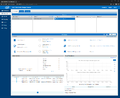 Click on the + in the Rack area to Create a new rack.
 -
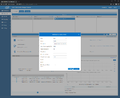 Enter all required data and confirm with OK.


Search for servers
A very successful function of the Intel DCM is the search function for servers or IPMI interfaces of servers in the network.
-
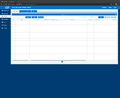 Change to Devices in the left menu tree and then switch to the Discovery and Import tab.
 -
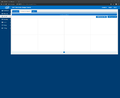 Click the Add Discovery Task button.
 -
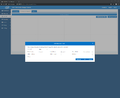 A smaller input window is displayed, you can select IPMI, SNMP v1 to v3, SSH or HTTPS for Protocol.
 -
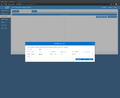 In this example, a /24 subnet is searched for IPMI interfaces, specify a start and an end IP, set the subnet mask and specify the IPMI user data. Then click on OK.
 -
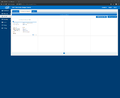 The task is executed directly and the subnet is searched for IPMI interfaces.
 -
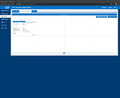 The display Total Devices Discovered shows live the Number of found interfaces.
 -
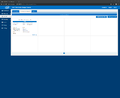 The search is now finished and a total of 19 IPMI interfaces were found in the subnet.
 -
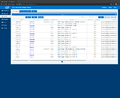 Change to the tab All Devices, now all found IPMI interfaces are listed.


Add a single server
You cannot monitor a server with the Intel DCM until this server has been added in advance using the Discovery function or manually. If you have also created a data center with rooms, rows and racks, you can now add a single server to a rack as described below:
-
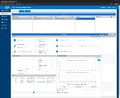 Click on the + in the Devices area.
 -
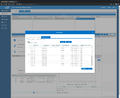 A smaller window is opened, it lists all found Devices that are not in a hierarchy. Select the desired Device and click on OK.
 -
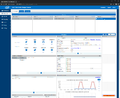 The device, in this case an IPMI interface, has been added. DCM already displays various information about this interface.


Add multiple servers simultaneously
Multiple servers can be added to a rack at the same time:
-
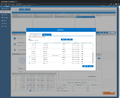 Click on the + in the Devices area and then select several entries in the Add Device window. Then click on OK.
 -
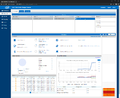 The devices were also added in the rack view (bottom right) and the information output was extended.


Change server settings
The server settings can be adjusted later, for example to modify information about the operating system or to add login parameters for the operating system:
-
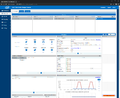 Activate the checkbox for the corresponding entry and click on the pencil icon.
 -
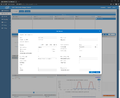 In this window Edit Device you can now adjust the most important parameters, e.g. adjust the form factor of the server or add operating system information. Then click on OK.
 -
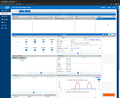 The changes have been applied and the rack view now shows a 2U device.


Create server group
Individual servers can be combined into server groups, for example, if they form a cluster.
-
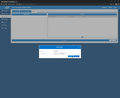 Change to Devices in the left menu tree and click on the + in the Group List tab. In the Add Group window, enter a Name and optionally a Description. Then click on OK.
 -
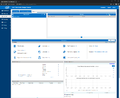 Then you can add devices to this group in the area Devices with the +.
 -
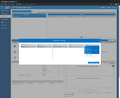 In this window, click through to the devices that you want to group and mark the checkbox for the desired entries. Then click on OK.
 -
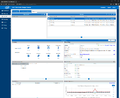 The selected devices have been added to the server group.


Further information
- Intel Data Center Manager (Intel DCM) Console User Guide (software.intel.com)
- Intel Data Center Manager (Intel DCM) Console (downloadcenter.intel.com)
- Intel Data Center Manager FAQ (intel.com)
References
- ↑ Intel Data Center Manager - Produktdetails (intel.de)
 |
Author: Thomas Niedermeier Thomas Niedermeier working in the product management team at Thomas-Krenn, completed his bachelor's degree in business informatics at the Deggendorf University of Applied Sciences. Since 2013 Thomas is employed at Thomas-Krenn and takes care of OPNsense firewalls, the Thomas-Krenn-Wiki and firmware security updates.
|





