

 wiki
wikiInstallation of Windows 11
Windows 11 can be installed on numerous current PCs. In this article, we explain the Installation of Windows 11 Enterprise 23H2 (evaluation version) on a LES v4.
Preparation of installation medium
First, download the desired ISO of the Microsoft website:
After this, transfer the ISO on a USB stick (in this example with the help of a Linux computer):
Installation of Windows 11
Perform the following steps for the installation:
-
![Plug the USB stick with the installation image into the computer, turn it on, and press the [Del] key to enter the BIOS.](//www.thomas-krenn.com/de/wikiDE/images/thumb/c/c7/LES-v4-Windows-11-01-Einschalten.jpeg/120px-LES-v4-Windows-11-01-Einschalten.jpeg) Plug the USB stick with the installation image into the computer, turn it on, and press the [Del] key to enter the BIOS.
Plug the USB stick with the installation image into the computer, turn it on, and press the [Del] key to enter the BIOS. -
![Navigate with the [->] arrow key to the point Save & Exit.](//www.thomas-krenn.com/de/wikiDE/images/thumb/b/b1/LES-v4-Windows-11-02-BIOS-Main.jpeg/120px-LES-v4-Windows-11-02-BIOS-Main.jpeg) Navigate with the [->] arrow key to the point Save & Exit.
Navigate with the [->] arrow key to the point Save & Exit. -
![Select the UEFI boot entry of the USB stick and press [Enter].](//www.thomas-krenn.com/de/wikiDE/images/thumb/9/9c/LES-v4-Windows-11-03-BIOS-Save-Exit-Boot-Override.jpeg/120px-LES-v4-Windows-11-03-BIOS-Save-Exit-Boot-Override.jpeg) Select the UEFI boot entry of the USB stick and press [Enter].
Select the UEFI boot entry of the USB stick and press [Enter]. -
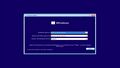 Confirm the desired language and click on Continue.
 -
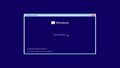 Click on install now.
 -
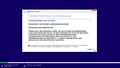 Confirm the conditions of the EULA.
 -
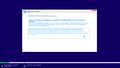 Select the desired installation method, in this example user-defined: install only Windows
 -
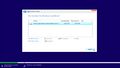 Select the disk on which you want to install Windows.
 -
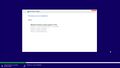 Windows is installing.
 -
 The computer restarts.
 -
 The installation is being continued.
 -
 Another hint appears indicating that the installation is running.
 -
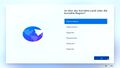 Confirm the country.
 -
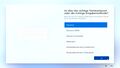 Confirm the right keyboard layout.
 -
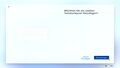 Skip the selection of a second keyboard layout.
 -
 The installer checks for updates.
 -
 The PC must not be switched off during installation.
 -
 The computer will be restarted.
 -
 A welcoming message appears.
 -
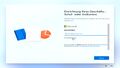 Set up the desired account. If you do not want to use an online account, select Login Options.
 -
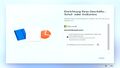 Then select Join the domain instead.
 -
![Now, you can set up a local account. If this does not function, Heise describes a possibility with separate Internet connection. [1][2]](//www.thomas-krenn.com/de/wikiDE/images/thumb/8/82/LES-v4-Windows-11-21-Name.jpeg/120px-LES-v4-Windows-11-21-Name.jpeg)
-
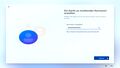 Create your password.
 -
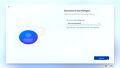 Confim your password.
 -
 Respond to three safety questions.
 -
 Please respond to the third and last question.
 -
 Select if Microsoft and apps should be allowed to use your location.
 -
 Select if you want to use the function search my device.
 -
 Select which diagnostic data is sent to Microsoft.
 -
 Choose whether to allow Microsoft to use diagnostic data to improve Freihand and input.
 -
 Select if Microsoft should be allowed to use diagnostic data for personalized advertisements.
 -
 Select if apps should use advertising IDs.
 -
 The preparations of the system are running.
 -
 This process may take a few minutes.
 -
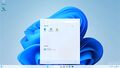 Windows is installed.
![Plug the USB stick with the installation image into the computer, turn it on, and press the [Del] key to enter the BIOS.](/en/wiki/File:LES-v4-Windows-11-01-Einschalten.jpeg)
![Navigate with the [->] arrow key to the point Save & Exit.](/en/wiki/File:LES-v4-Windows-11-02-BIOS-Main.jpeg)
![Select the UEFI boot entry of the USB stick and press [Enter].](/en/wiki/File:LES-v4-Windows-11-03-BIOS-Save-Exit-Boot-Override.jpeg)


![Now, you can set up a local account. If this does not function, Heise describes a possibility with separate Internet connection. [1][2]](/en/wiki/File:LES-v4-Windows-11-21-Name.jpeg)


Driver
Download the driver for VGA, Intel Management Engine as well as the Chipset driver and install them.
-
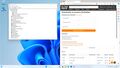 Several other devices are displayed in Device Manager. Download the drivers for your device, for example for LES v4 from here: Downloads LES v4
 -
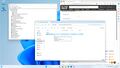 Install the VGA driver.
 -
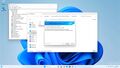 Install the driver for the Intel Management Engine.
 -
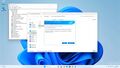 Install the driver for the chipset.
 -
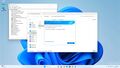 Complete the installation. Now, all devices are noted correctly in the device manager.
 -
 Now, you can shut down the computer.


References
- ↑ Windows-Installation mit lokalem Konto: Microsoft blockiert populäre Umgehung (www.heise.de, 10.06.2024)
- ↑ Microsoft schließt bekannte Lücke bei Windows-Installation ohne Microsoft-Konto (www.heise.de, 31.03.2025)
 |
Author: Werner Fischer Werner Fischer, working in the Knowledge Transfer team at Thomas-Krenn, completed his studies of Computer and Media Security at FH Hagenberg in Austria. He is a regular speaker at many conferences like LinuxTag, OSMC, OSDC, LinuxCon, and author for various IT magazines. In his spare time he enjoys playing the piano and training for a good result at the annual Linz marathon relay.
|
 |
Translator: Alina Ranzinger Alina has been working at Thomas-Krenn.AG since 2024. After her training as multilingual business assistant, she got her job as assistant of the Product Management and is responsible for the translation of texts and for the organisation of the department.
|





