

 wiki
wikiDelete Windows password - bypass password lock at Windows 10
chntpw, the command line tool, has a wide range of configuration options under Linux for manipulating the SAM (Security Account Manager / user management) of a Windows system.[1] Those who did not create a password reset disk, do not have any opportunities to delete the account password or bypass the password lock. This article shows how to install and use this tool under Ubuntu or Debian as well as Red Hat Enterprise Linux and CentOS.

Important information: Be sure to create a backup beforehand and then change the entries in the user administration. If your Windows 10 displaces your system to hibernation mode during shut down, the hard drive can be mounted in read-only mode with a Linux-based operating system.[2] In this case, the solution is to shut down the complete Windows 10 system. For this, click and hold the Shift-key on the welcome screen and click on "shut down".[3]
Short overview
The following work steps are made step by step:
- Live Linux is booted
- The Windows partition is integrated
- The editing of the user administration is performed by Windows with the chntpw tool
- The Windows partition is taken down again and Windows is started with modified settings
Compatibility: This procedure functions under Windows NT, XP, Vista, 7, 8, 2003/2008 Server, 10 Professional
Preparations
First, download a Linux-based operating system from chntpw, for example Ubuntu Desktop 16.04, and create a USB stick.
Select the option "try Ubuntu" in the boot menu at startup to load Live Linux into the working memory.
After this, an active network connection must be set up.
Important:The universe repository must be activated in the settings "Applications & Updates",
so that the tool can be installed successfully.

Installation of chntpw
To use chntpw , the package manager must be used to perform the installation from the repositories.
- Ubuntu / Debian based systems:
$ sudo apt install chntpw - RHEL / CentOS:
# yum install chntpw
Usage of chntpw
The tool offers a lot of opportunities to manipulate/configure the SAM user administration of Windows (here in the example: Windows 10):
- display of all reported users on the system
- LevelUp user (grant users administrator rights, for example)
- delete passwords
- determine password validity
- create users in an assigned group
- delete users in assigned groups
Delete Windows password
The following procedure enables to delete the password of a certain user with chntpw:
- First, the Windows partition is mounted under Linux
- After this, switch to this directory:
- cd (mountpoint)/Windows/System32/config
- Start chntpw in the terminal with root-rights and further parameters.
- Call of all reported/listed Windows accounts:
# chntpw -l SAM
- Delete the password of rseverin user:
# chntpw -u rseverin SAM- Delete password with 1
- Exit editor and safe with q and y
- As the editing of the user administration has been completed, the Windows partition must be unmounted again.
- Now, Windows 10 can be started successfully without password prompt.
The following screenshots display the user output through chntpw as well as the processing of the user as described in the instructions above:
-
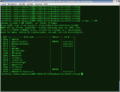 Output of all users through chntpw
 -
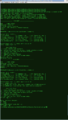 edit user


Both screenshots show that the restart has been performed and the password has been deleted:
-
 The password has been deleted
 -
 Welcome screen of Windows 10


References
- ↑ Chntpw (wikipedia.org)
- ↑ Unable to mount Windows (NTFS) filesystem due to hibernation (askubuntu.com)
- ↑ How can I do a full shutdown of windows 10 without logging in? (superuser.com)
 |
Author: Wilfried Seifert Wilfried Seifert, working in the Systems Engineering department at Thomas-Krenn, is responsible for system/prototype development in his work area. LPIC 3 certified, deals with construction / programming of embedded / GPIO systems; in his spare time he likes to repair old home computers, attends Linux conferences or is on the road with his bike (MTB) for sporting compensation.
|
 |
Translator: Alina Ranzinger Alina has been working at Thomas-Krenn.AG since 2024. After her training as multilingual business assistant, she got her job as assistant of the Product Management and is responsible for the translation of texts and for the organisation of the department.
|





