

 wiki
wikiDatastore Browser for copying Files to ESX/ESXi Server
You can copy files between your client PC and a VMware ESX/ESXi system using vSphere Client’s datastore browser. You will see several screenshots about this in the following article.
Example Configuration
- ESXi 4.1 Build 260247
Screenshots
-
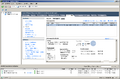 Step 1: Select the Store option on the Configuration tab.
 -
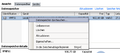 Step 2: Right-click the desired datastore and select Search datastore....
 -
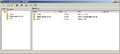 Step 3: You will then be in the datastore browser.
 -
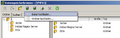 Step 4: Select the toolbar button with the arrow point up in order to copy files (such as ISO files) to the ESX/ESXi system. (First, select the directory to which you want to copy the files in the datastore browser.)


Related articles
Adaptec RAID Controller Monitoring in VMware
Increasing the size of a virtual disk in VMware
VMware Upgrade Process - Migrating from vSphere 4 to vSphere 5



