

 wiki
wikiHow to activate and configure SNMP in TKMI
This article describes how to activate and configure the SNMP-access for an user in the TKMI (Thomas-Krenn Management Interface)
Prerequisites
- A compatible TKMI or Thomas-Krenn server
- Access to the TKMI/IPMI-websurface
- Valid user login data with administrative rights
User administration
So that SNMP can be used, the access must be activated for a user in the TKMI.
-
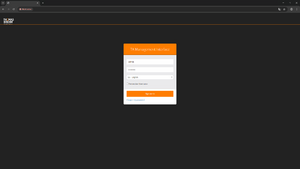 Log in to the TKMI web interface with a valid username (for example admin).
 -
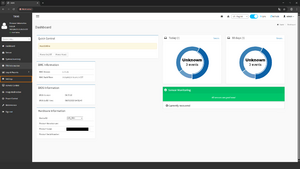 After logging in, go to Settings in the left-hand menu.
 -
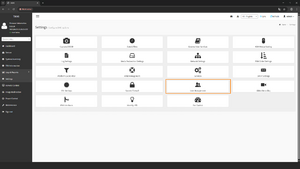 In the Settings section, open the User Management option.
 -
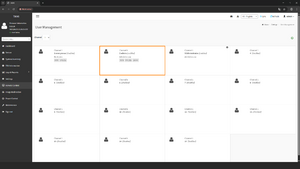 Select the user for whom you want to enable SNMP.
 -
 Enter your current password in the Logged-In Password field to confirm.
 -
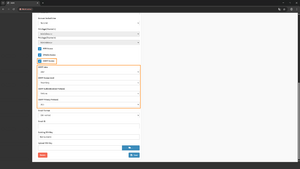 In the lower section, enable SNMP Access and configure the desired SNMP parameters.


After the configuration, the changes must be saved with Save.
MIB browser
For the verification of the SNMP-availability and to read out values, a MIB browser can be used.
In this example, the iReasoning MIB browser is used.
-
 iReasoning MIB browser download

Establish connection to TKMI
After activation of the SNMP in TKMI, the connection can be tested as follows:
-
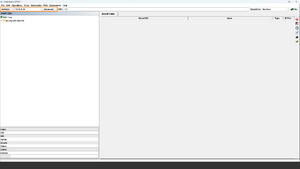 Enter the TKMI's IP address in the Address field. Click Advanced... to access the advanced SNMP settings.
 -
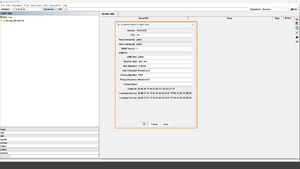 In the advanced settings, select SNMP Version 3 and enter the login access data.
 -
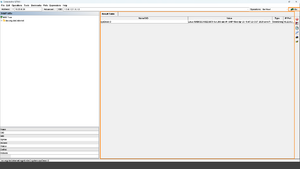 Once configured, you can run a query by clicking Go. Successful results are displayed in the Result Table.


Important settings (SNMPv3)
For a successful connection, the following parameters must comply with the set values in TKMI:
- Address: IP-address of TKMI
- Port: 161
- SNMP Version: 3
- User: Corresponds to the user configured in the TKMI
- Security Level: authPriv
- Auth Algorithm: for example SHA256
- Auth Password: set authentication password
- Privacy Algorithm: for example DES
- Privacy Password: set encryption password
Hint: If there are discrepancies in the username, password, or algorithms, no SNMP responses will be returned.
Test query
For a simple function test, the following OID can be used:
- 1.3.6.1.2.1.1.1.0 (sysDescr)
If the connection is successful, a system description of the TKMI is displayed in the Result Table.
Troubleshooting
If the SNMP-access does not function:
- SNMP Access not activated
- Wrong access data / community
- Firewall blocks SNMP (Port 161/UDP)
- Incorrect OID specified
- SNMP-version does not comply
 |
Author: Adrian Zillner Adrian Zillner has been working in Technical Service at Thomas-Krenn AG since May 2025. He is responsible for supporting customers and answering questions about technical issues.
|

 |
Translator: Alina Ranzinger Alina has been working at Thomas-Krenn.AG since 2024. After her training as multilingual business assistant, she got her job as assistant of the Product Management and is responsible for the translation of texts and for the organisation of the department.
|