

 wiki
wikiCreate Avago logfiles with LSIget under Linux
| Please note that this article / this category refers either on older software / hardware components or is no longer maintained for other reasons. This page is no longer updated and is purely for reference purposes still here in the archive available. |
|---|
This article shows, how to generate logfiles for Avago MegaRAID raid controller (previously 3Ware & LSI) under Linux. These logfiles help our support team when having controller, harddrive or performance issues.
Preparation
You can copy the logfiles either via SFTP-Access or an USB-drive to your client system. The SFTP-Access method is easier and more comfortable.
For the creation of this articel were used:
Suggestion: If there is no Linux-OS installed you can use a live system; e.g. Debian Live (debian.org)
Create logfiles and copy via SFTP
What you need:
- The LSIget script for Linux (mycusthelp.info)
- A SSH-Client; here PuTTY (putty.org)
- A SFTP-Client; here WinSCP 5.5.6 (winscp.net)
The following steps show you how to create the logfiles and transfer them via SFTP:
-
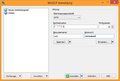 Step 1: Connect with WinSCP to your linux server as root user.
 -
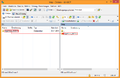 Step 2: Copy the script directory to "/tmp" on your server.
 -
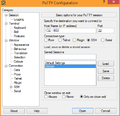 Step 3: Now connect with PuTTY to the the server.
 -
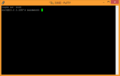 Step 4: Login as root.
 -
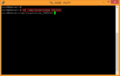 Step 5: Switch to the script directory.
 -
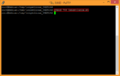 Step 6: Make the script executable.
 -
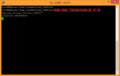 Step 7: Execute the script.
 -
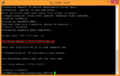 Step 8: The script is done now.
 -
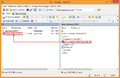 Step 9: Copy the ".tar.gz"-archive to your client.
 -
 Step 10: Send the archive, an error description and the serial number of the server to support@thomas-krenn.com.


Create logfiles and copy to usb drive
What you need:
- The LSIget script for Linux (mycusthelp.info)
- A USB drive with FAT32 filesystem
- Physical access to the server
The following steps show you how to create the logfiles and copy them to a USB drive:
-
 Step 1: Plug the USB drive to the server.
 -
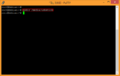 Step 2: Create a new directory to mount the USB drive.
 -
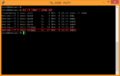 grep sd for right drive.
 -
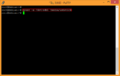 Step 4: Mount the USB drive on the created directory.
 -
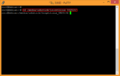 Step 5: Switch to the script directory.
 -
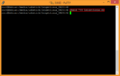 Step 6: Make the script executable.
 -
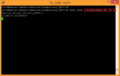 Step 7: Execute the script.
 -
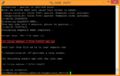 Step 8: The script is done now.
 -
 Step 9: Unplug the USB drive from the server.
 -
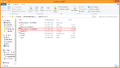 Step 10: The logfiles are located on the USB drive.
 -
Step 11: Send the archive, an error description and the serial number of the server to support@thomas-krenn.com.


Related articles
Hard Disk Drive Firmware Update with MegaRAID or Adaptec RAID Controller
RAID Controller Management and monitoring on VMware vSphere
SSDs RAIDs with MegaRAID controllers



