

 wiki
wikiCloning a Windows installation with Clonezilla
In this article, we explain how to clone a Windows-installation with the help of Clonezilla on a new hard disk.
This also works from smaller to larger hard drives, in which case the partitions must be adjusted using the GParted tool.
Preparations
Creation of live medium
Use Unetbootin (sourceforge.net) to create a bootable USB stick or burn the ISO media to a CD so that you can boot from it later:
- Clonezilla (clonezilla.org)
- GParted (gparted.org)
Alternatively, you can use the live medium PartedMagic (partedmagic) that brings both tools with it.
Recognizing hard disks
You can note the serial numbers of the hards disks to clearly assign the hard disks later. You can find them on the cover of the hard disks.
Clonezilla
Cloning process
-
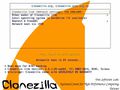 1) Start from the Clonezilla-CD.
 -
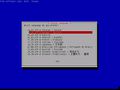 2) Select German as your language.
 -
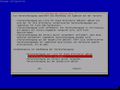 3) Do not change keyboard layout.
 -
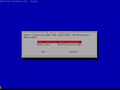 4) Start Clonezilla.
 -
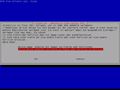 5)Select device-device to clone from hard drive to hard drive.
 -
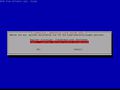 6) Here you need expert mode to be able to make settings later.
 -
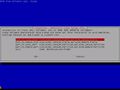 7) disk_to_local_disc
 -
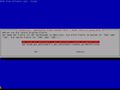 8)Select the hard drive from which the data is to be cloned...
 -
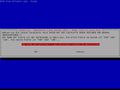 9) and then the target plate.
 -
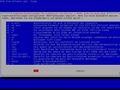 10) To restart Windows, the first option must be disabled. Optionally, you can enable the rescue parameter if the copy process cannot be continued due to read errors.
 -
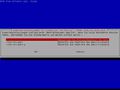 11) You can skip the verification to save time.
 -
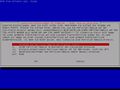 12) The partition table of the original disk must be transferred.
 -
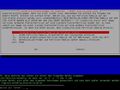 13) The command has now been created and can be executed..
 -
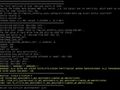 14) You will see the partitions that will be created on the target disk again.
 -
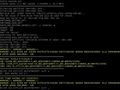 15) Repeated security prompt
 -
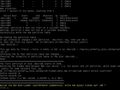 16) The boot loader must be taken over.
 -
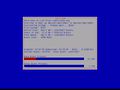 17) The cloning process is now running. This will take some time, depending on the size of the partitions.
 -
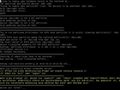 18)Click Enter.
 -
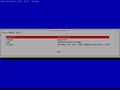 19) and shut down the system.


Completion
Once the server/PC has shut down, you can remove the old hard drive and restart. Check the boot order in the BIOS to be on the safe side.
GParted
If the new hard drive offers more storage space than the old one, this space cannot yet be used because the old partition size is still in use. With GParted, you can enlarge the partitions so that the full storage space can be used again.
-
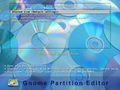 1) Start from GParted-CD.
 -
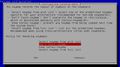 2) Don't touch keymap.
 -
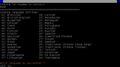 3) Tap “10” for English.
 -
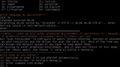 4) Select mode(0).
 -
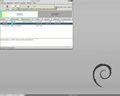 5) Click on "Resize/move".
 -
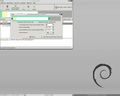 6) Now, you can adapt the size.
 -
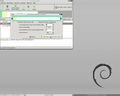 7) Confirm the changes...
 -
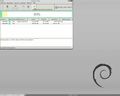 8)and perform them.
 -
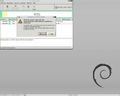 9) Confirm security check.
 -
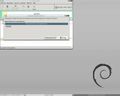 10) The changes have been applied.
 -
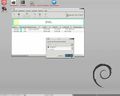 11) Double-click Exit and perform restart/shutdown.


Author: Dominik Hilpert
 |
Translator: Alina Ranzinger Alina has been working at Thomas-Krenn.AG since 2024. After her training as multilingual business assistant, she got her job as assistant of the Product Management and is responsible for the translation of texts and for the organisation of the department.
|





