

 wiki
wikiRestoring to a smaller target disk with Clonezilla

It (usually) works without any problems to copy Clonezilla images on identic or larger data carriers. It is different when large, but not partially filled storage media should be mapped to smaller data carriers. Clonezilla cancels and the "....Target Disk to small!" notification appears. For a typical application case, for example a larger system partition/HDD on a secondary computer with smaller and faster SSD. The example in this Wiki article shows how to clone a 480 GB source disk to a 128 GB target disk using only Clonezilla's built-in tools.
Test environment
The following components are used for these instructions:
- Clonezilla version: Clonezilla_live_ 2.5.5-38 Boot CD (stable)
- source environment: Ubuntu 16.04.04 64bit with desktop and 480 GB HDD (standard installation)
- target environment: (no OS) with 128 GB SSD
Preparations

Important hint: Before the partition table/MBR is changed, a complete backup of the system/source data carrier is higly recommended as safety measure.
Download of Clonezilla Live version
To use Clonezilla, download the latest live version of Clonezilla and copy the image, for example, to a USB stick or to a BootCD.[1]
Identification of source partitions
To determine whether the image will fit on the smaller target disk, it is important to consider the ratio of partition size to usable data on the partition to be cloned. In this step, it is important to check whether there is still enough free space available on the future target data carrier after deducting the user data. This ensures that the root partition does not become "full" during a standard installation due to updates or services and applications installed later.
- Identify the partition with the following command:
$ df -h
Shrinking of the file system of the source partition
So that the source partition suits on the target data carrier, it is now being reduced in size. For this, Clonezilla live is started on a USB stick or BootCD. After this, the shell of Clonezilla is started.

Display of all block devices
All available block devices can be displayed with the lsblk command:
$ lsblk
Reduction of the file system
The following procedure enables to reduce the not mounted partition with the resize2fs tool:
- Change to root user:
$ sudo -i
- Before the file system is reduced, it should be verified on inconsistency or errors:
$ e2fsck -f /dev/sda1
- Now, the file system is reduced with some reserve on, for example 15 GB (useful data included, for example 4.1 GB, see above):
$ resize2fs /dev/sda1 15g
Hint: This procedure can take multiple minutes depending on the partition size.
Creation of complete new backup/DiskImage
With the clonezilla command, we switch (without reboot) back to the menu-driven display of Clonezilla. Now, a complete disk backup/image is created.
Restore of the new disk-image on smaller target data carrier
We start Clonezilla Live on the target computer. In this example, with a new installed 128 GB data carrier. To clone the previously created image on a smaller target data carrier, follow the instructions below:
-
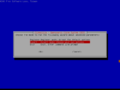 Use the expert mode from Clonezilla.
 -
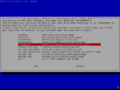 Select the menu point Restore to multiple local Disks in the Restore menu.
 -
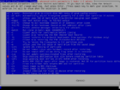 Activate the -icds Skip Checking destination disk size before creating partition table option in the subsequent selection menu.
 -
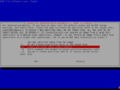 State the additional -k1 Create Partition table proportionally parameter.


In the next step, you can optionally activate a verification of the image. Confirm the warning notice and perform the restore. A proportional change of the partition table is automatically executed on the target data carrier as well as the installation of the Bootloader Grub.
Perform reboot
After a reboot, the operating system is ready for use with a smaller SSD.

References
- ↑ Clonezilla live (clonezilla.org)
 |
Author: Wilfried Seifert Wilfried Seifert, working in the Systems Engineering department at Thomas-Krenn, is responsible for system/prototype development in his work area. LPIC 3 certified, deals with construction / programming of embedded / GPIO systems; in his spare time he likes to repair old home computers, attends Linux conferences or is on the road with his bike (MTB) for sporting compensation.
|
 |
Translator: Alina Ranzinger Alina has been working at Thomas-Krenn.AG since 2024. After her training as multilingual business assistant, she got her job as assistant of the Product Management and is responsible for the translation of texts and for the organisation of the department.
|





