wiki
wikiReduction/Deactivation of CPU cores on Thomas-Krenn servers in the BIOS
In today's technology-driven landscape, optimizing server resources is paramount for both performance and cost efficiency. By strategically adjusting the number of cores allocated, organizations can tailor their server configurations to specific workload requirements while reducing operating costs.
For certain operating systems such as Azure Stack HCI, where costs are calculated per CPU core, this approach is a practical solution to reduce costs. Instead of allocating more resources than necessary and potentially underutilizing them, administrators can fine-tune core allocations to match actual workload requirements. This flexibility not only streamlines spending, but also ensures optimal performance without unnecessary overhead
Adjusting core allocations is relatively simple and can be done directly through the server's BIOS interface. Administrators have the flexibility to increase or decrease the number of cores as needed, allowing for dynamic resource allocation based on evolving workload requirements. Whether increasing the number of cores to handle growing workloads or decreasing the number of cores to optimize costs during periods of lower activity, this granular control allows organizations to quickly adapt to changing circumstances.
Dual-AMD family v4 - AMD EPYC 9004 (Genoa)
AMD CPUs of Genoa generations offer two possibilities to adapt the number of used cores: Core Control and CCD Control. Both can be set via BIOS and is explained in the following.
Systems
The following Thomas-Krenn systems belong to the Dual-AMD family of the 4th generation:
- AzSHCI RA2224 v4
- AzSHCI RA2212 v4
Instructions
To adapt the cores on an AMD system, you have to call up the BIOS system and make the appropriate settings.
- Restart your computer and press the F1 key during the boot process to access the BIOS.
- Navigate to the tab Advanced-> CPU common Options -> CCD/Core/Thread Enablement
- Select the desired number of cores that should be activated.
- As soon as the desired settings have been made, safe them and restart the server.
-
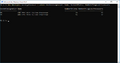 View of all cores before deactivation
 -
 With F1 to BIOS
 -
 BIOS: Advanced-> CPU common Options -> CCD/Core/Thread Enablement
 -
 View of all cores after deactivation


Core Control and CCD Control
At Thomas-Krenn.AG, we use Core Control by default due to easier comprehension. Nevertheless, for the sake of completeness, we would like to explain both options in tabular form:
Core Control overview
| Core Control | 64C CPU | 48C CPU | 32C CPU | 16C CPU | 8C CPU |
|---|---|---|---|---|---|
| ONE | 4C | 4C | 4C | 4C | 4C |
| TWO | 8C | 8C | 8C | 8C | 8C |
| THREE | 12C | 12C | 12C | 12C | 8C |
| FOUR | 16C | 16C | 16C | 16C | 8C |
| FIVE | 20C | 20C | 20C | 16C | 8C |
| SIX | 24C | 24C | 24C | 16C | 8C |
| SEVEN | 28C | 28C | 28C | 16C | 8C |
| Auto(=ALL) | 64C | 48C | 32C | 16C | 8C |
CCD Control overview
| CCD Control | 64C CPU | 48C CPU | 32C CPU | 16C CPU | 8C CPU |
|---|---|---|---|---|---|
| 2 CCDs | 8C | 8C | 8C | 8C | 8C |
| 3CCDs | 12C | 12C | 12C | 12C | 8C |
| 4 CCDs | 16C | 16C | 16C | 16C | 8C |
| 6 CCDS | 24C | 23C | 24C | 16C | 8C |
| Auto (=ALL) | 64C | 48C | 32C | 16C | 8C |
Dual-Intel family v5 - Intel Xeon Scalable 5th Gen (Emerald Rapid)
The Intel Emerald Rapid CPU Generation also offers the possibility to manage the cores in the BIOS.
Systems
The following systems belong to the Dual-Intel family of the 5th generation:
- AzSHCI RI2112 v5
- AzSHCI RI2224 v5
- AzSHCI RI2212 v5
Instructions
To adapt the number of cores on an Intel system, you have to call up the BIOS of the system and make the corresponding settings.
- Restart your computer and press the F1 key during the boot process to access the BIOS.
- Navigate to the tab
Bios Advanced -> CPU Cores Configuration - Select the desired number of cores that should be activated.
- As soon as the desired settings were made, safte them and restart your server.
-
 View of all cores before deactivation
 -
In the BIOS with F1
-
 Advanced -> CPU Cores Configuration -> set cores
 -
 View of all cores after deactivation


 |
Author: Leo Dirr Leo Dirr joined Thomas-Krenn in 2018 to work in technical support. At the moment Leo is specializing in Windows Server, Software-Defined technologies and networking.
|
 |
Translator: Alina Ranzinger Alina has been working at Thomas-Krenn.AG since 2024. After her training as multilingual business assistant, she got her job as assistant of the Product Management and is responsible for the translation of texts and for the organisation of the department.
|