

 wiki
wikiCreating a Bootable DOS USB Stick
This article explains how to create a bootable FreeDOS USB stick.[1] FreeDOS is GNU licensed and DOS compatible. To create the stick, you will need either the program Rufus for Windows or Unetbootin for Linux and Windows.
Creating a Bootable DOS Stick in Windows
Rufus is an open source program licensed under the GPL scheme.[2]
- Download Rufus from the Rufus website under Rufus downloads (rufus.akeo.ie).
- Rufus does not need to be installed. After the download has been completed, you will need to run the program as administrator.
- You do not need to download FreeDOS, since Rufus will install it directly using a template.
After starting Rufus as Admin, follow these instructions:
-
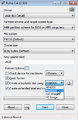 Select the USB stick to be formatted. Click next on the drop-down menu to create a bootable disk using and select FreeDOS.
 -
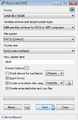 Now click on Start to format the stick and install FreeDOS.
 -
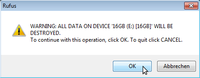 Approve the warning that the stick will be deleted/formatted by clicking OK. Any data on the stick will be lost!
 -
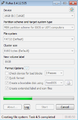 The installation of FreeDOS starts.
 -
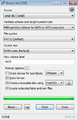 The USB stick is now completed and Rufus can be exited.


OS-independent Alternative
A further possibility for installing FreeDOS on a USB stick comes in the form of UNetbootin. It is available for all conventional operating systems.[3]
Preparation
A FAT32 formatted USB stick is needed for the installation. To do this in Ubuntu, use the following command:
- The USB stick is the device /dev/sdb
- Note: Formatting the stick will erase all of its data
sudo mkfs.vfat -F 32 /dev/sdb1
Creating a DOS Stick with Unetbootin
- In Ubuntu, the code is installed via apt using
apt-get install unetbootin- Or download UNetbootin from UNetbootin downloads (unetbootin.net).
- A download of FreeDOS is not necessary as Unetbootin distributions can independently download and install the program.
-
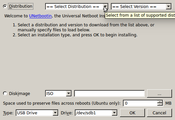 In the Distribution section, use the drop-down menu to find the various operating systems.
 -
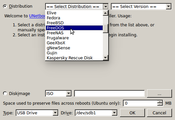 Select FreeDOS from the list.
 -
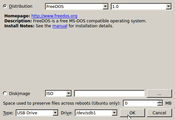 Choose the USB stick to be formatted. Confirm with OK. If your stick does not appear in the menu, you need to mount it first.
 -
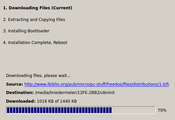 FreeDOS is downloaded, extracted and installed.
 -
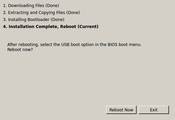 The USB stick is now finished. You can now perform a restart to use the stick or exit UNetbootin.


References
- ↑ FreeDOS (freedos.org)
- ↑ Rufus website (akeo.ie)
- ↑ Discover UNetbootin (unetbootin.net)
Author: Dominik Hilpert


Related articles
How to: Install Nextcloud with an NFS data directory
Log4shell zero-day vulnerability
WireGuard Basics