

 wiki
wikiNextcloud Talk - chats & conferences ( audio / video )

Nextcloud Talk is an expansion for Nextcloud that enables users to perform audio- and video-calls. The expansion is available for free and is undergoing continuous development and is a featured app in Nextcloud app center. You get to Nextcloud-Talk by clicking on the Nextcloud-Talk symbol in your application bar.
General function
Text-Chat: You can create and maintain more conversations: either a direct conversation with a single user or a group chat with multiple persons or participants. In the text chat, you can discuss, upload or link already uploaded files in the chat. You can mention users with @user or you can message all users with @all.

You can usually start conversations with created users or groups in your Nextcloud instance. Work is currently underway to enable the integration of users from other Nextcloud instances via Nextcloud Federated Cloud. However, you can open conversations completely. Please refer to the section "Create conversation" at the bottom of the article.
Audio-Call: With a click on "Start call" you can call all participants of the conversation to start the audio-call. With "m", you mute your microphone. Alternatively, you can click on the microphone symbol.
Video-Call: As soon as the call is started, you can switch on and switch off your webcam. For this, click on the V key or click on the camera-symbol in the conference window.
Screen Sharing: With a click on the screen symbol, you start or end your screen sharing. After clicking, you can either share your whole screen, a single application window or a single TAB with your business partner.
Hint: Please note that Nextcloud Talk can be very resource-intensive, especially for video conferences or larger audio conferences, and this can affect the quality of the transmission.
Important: Please note that Nextcloud Talk is not suitable for conferences with a lot of participants. .
Nextcloud writes about this: "A typical private Nextcloud Talk setup should handle dozens of calls with each up to 4-6 participants, up to 20 if all participants have a good network connection and do not use video."
Create conversation:
This short step by step instructions show how to create a conversation and how to invite users (internal/external):
-
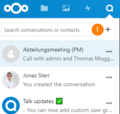 To create a (public) conversation, click on the + symbol in the application menu on the left side.
 -
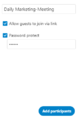 A pop-up window will appear where you can define the name of the conversation and also specify whether guests are allowed to join via a link (including an optional password). Now, click on “Add participants.”
 -
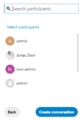 Now, you can additionally add Nextcloud-users as participants and conclude the creation of the conversation with "Create conversation".
 -
 With a click on "Copy conversation link", you can add the link to your clipboard.


Mobile Clients
For Nextcloud, there are also mobile clients for Android or Apple iPhone / iPad. These enable chats, group chats, video and audio calls (no screen sharing) with all your contacts on your Nextcloud instance.
 |
Author: Jonas Sterr Jonas Sterr has been working for Thomas-Krenn for several years. Originally employed as a trainee in technical support and then in hosting (formerly Filoo), Mr. Sterr now mainly deals with the topics of storage (SDS / Huawei / Netapp), virtualization (VMware, Proxmox, HyperV) and network (switches, firewalls) in product management at Thomas-Krenn.AG in Freyung.
|
 |
Translator: Alina Ranzinger Alina has been working at Thomas-Krenn.AG since 2024. After her training as multilingual business assistant, she got her job as assistant of the Product Management and is responsible for the translation of texts and for the organisation of the department.
|





