

 wiki
wikiMeasuring Performance under Windows with Perfmon
| Please note that this article / this category refers either on older software / hardware components or is no longer maintained for other reasons. This page is no longer updated and is purely for reference purposes still here in the archive available. |
|---|
This article will describe how to measure performance under Windows using the Perfmon utility.
Specifically, this article will be about I/O performance. Using Perfmon, all of the system components can in fact be analyzed.
Perfmon is included with Windows by default.
The objective is to measure the I/O load on the data media on the system for a corresponding interval, in order to size the target system properly.
Steps
- Start Perfmon using the Run menu option. perfmon.exe
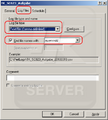
The gallery will show the steps after that as images.
-
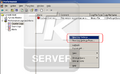 Step 1: Create a new performance counter log
 -
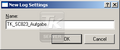 Step 2: Assign it a unique name (such as, Company_HostName_Purpose)
 -
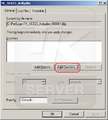 Step 3: Add the performance counters
 -
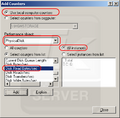 Step 4: Add the PhysicalDisk object and select all instances


Choose from the following counters:
- Bytes read/s (all instances)
- Bytes written/s (all instances)
- Idle time (%) (all instances)
- Average bytes / read (all instances)
- Average bytes / write (all instances)
- Average seconds / read (all instances)
- Average seconds / write (all instances)
- Disk reads / second (all instances)
- Disk writes / second (all instances)
-
Step 5: Appearance when all counters have been added
-
 Step 6: Setting the log file properties
 -
Step 7: Scheduling the measurements


Related articles
Microsoft iSCSI Software Target 3.3
Using GPT partitions over 2 TB in Windows
VDS Basic Provider Error Message 490@01010004 in Windows



