

 wiki
wikiInstall Debian GNU/Linux
Debian GNU/Linux is suitable both as a Linux desktop system as well as for the operation of server applications. The following article shows the Installation of Debian GNU/Linux 12 (Bookworm) on a server'.
Download ISO image
Download one of the following two images:
- current netinst image (approx. 620 MB)
- current DVD image (approx. 3.7 GB)
Create installation medium
Use an empty USB stick for the installation. Use the cp command to copy the installation ISO image to the USB stick (replace /dev/sdX with the device name of the USB stick, make sure you choose the correct device name, otherwise data on your hard disks/SSDs could be overwritten):
cp debian-12.XXX.iso /dev/sdX
Installing Debian
The installation proceeds in several steps. The following screenshots show the individual steps.
Start installation and select country settings
-
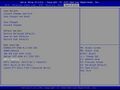 In the BIOS, select the previously created USB stick as the boot drive. Use the “UEFI” boot entry.
 -
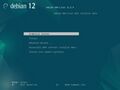 In the Grub boot menu, select Graphical Install.
 -
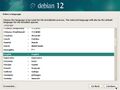 In the example here we use English. Select German here if you prefer German.
 -
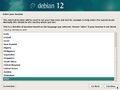 Select the desired country in the next steps.
 -
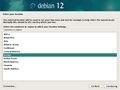
-
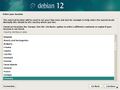
-
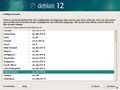
-
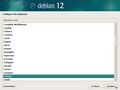 Select the keyboard layout.


Network settings
-
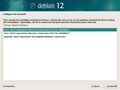 Select the network card.
 -
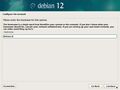 Choose a hostname.
 -
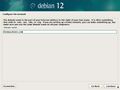 Choose the desired domain.


User settings
-
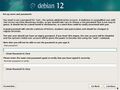 Enter a password for the root user. If you leave this blank, use sudo in future to execute commands with root rights.
 -
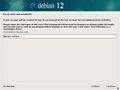 Enter the full name of the user.
 -
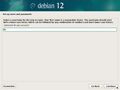 Choose a username.
 -
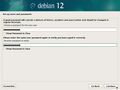 Choose a secure password.


Drive settings
-
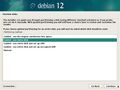 Select the partition method.
 -
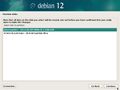 Select the drive for the installation.
 -
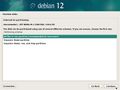 Select the desired partition scheme.
 -
 Finalize the configuration.
 -
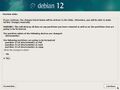 Confirm the overwriting of the desired drive again.


Installation and Reboot
-
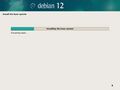 The installation of the basic system is running.
 -
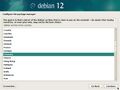 Choose a country to select the Debian mirror.
 -
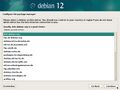 Select the desired mirror.
 -
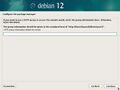 If necessary, configure an HTTP proxy.
 -
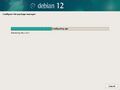 Apt downloads files.
 -
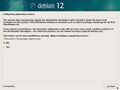 If you wish, you can take part in the package survey.
 -
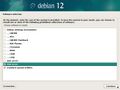 Select the desired software. In this example, a SSH server is installed.
 -
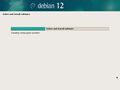 Installation of the software packages.
 -
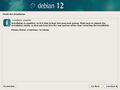 Perform a reboot to complete the installation.
 -
 Login screen after successful installation.
 -
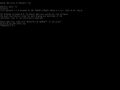 Display after successful login.


 |
Author: Werner Fischer Werner Fischer, working in the Knowledge Transfer team at Thomas-Krenn, completed his studies of Computer and Media Security at FH Hagenberg in Austria. He is a regular speaker at many conferences like LinuxTag, OSMC, OSDC, LinuxCon, and author for various IT magazines. In his spare time he enjoys playing the piano and training for a good result at the annual Linz marathon relay.
|





