wiki
wikiGraylog - Remote Log Server Management of a Proxmox VE Clusters
This article shows how to set up a Graylog server on a virtual machine or a server to collect logs from your Proxmox cluster. Logs are of central importance when it comes to administering a production system. Evaluating these logs serves the purpose of being informed about changes to the system, narrowing down the source of a problem, or ensuring the availability of the system. This can be especially useful after a server or entire cluster failure to sensibly plan the next steps / troubleshooting in order to get the systems back up and running as quickly as possible.
Currently, it is still not possible to install MongoDB on Debian 12.X without a workaround. Therefore, this guide still uses Debian 11.X.
Prerequisites
- A VM or a server with Debian 11.X installed, IP configuration of the system including a route to the internet
- When installing on a VM under Proxmox VE, it is important to ensure that the CPU type is set to "host", otherwise MongoDB will not start
- Sufficient available storage capacity, as the collected logs over time will require a considerable amount of storage space
Installation and Configuration
MongoDB Installation
Since Graylog requires a database to store the collected logs, MongoDB is used in this guide. The MongoDB repository must first be added to the source list before it can be installed. Run the following commands to install the packages:
Note: If you are not logged in as the root user, you must prepend sudo to all commands.
apt install wget && gnupg -y
wget -qO - https://www.mongodb.org/static/pgp/server-6.0.asc | apt-key add -
echo "deb http://repo.mongodb.org/apt/debian bullseye/mongodb-org/6.0 main" | tee /etc/apt/sources.list.d/mongodb-org-6.0.list

apt update
apt install mongodb-org -y

systemctl daemon-reload
systemctl enable mongod.service
systemctl restart mongod.service
systemctl --type=service --state=active | grep mongod
OpenSearch
Next, the OpenSearch package must be downloaded and installed. OpenSearch is an open-source tool for the display and evaluation of log files. Certain preparations must be made to use OpenSearch:
Note: From OpenSearch version 2.12 onwards, an initial password must be specified; otherwise, the installation will fail.
wget https://artifacts.opensearch.org/releases/bundle/opensearch/2.12.0/opensearch-2.12.0-linux-x64.deb

env OPENSEARCH_INITIAL_ADMIN_PASSWORD=<custom-admin-password> dpkg -i opensearch-2.12.0-linux-x64.deb
After installing OpenSearch, the following prompt is displayed, even though the installation was successful:
# NOT starting on installation, please execute the following statements to configure opensearch service to start automatically using systemd

systemctl daemon-reload
systemctl enable opensearch.service

# You can start opensearch service by executing
systemctl start opensearch.service

# Create opensearch demo certificates in /etc/opensearch/ See demo certs creation log in /var/log/opensearch/install_demo_configuration.log
This prompt indicates that OpenSearch must first be enabled to start automatically. This can be ignored at this point since it will be done later in the guide.
Graylog Configuration
Next, some adjustments must be made to OpenSearch to enable later integration with Graylog.
Open the following file with nano:
nano /etc/opensearch/opensearch.yml
The following parameters should now be adjusted in this file to set up a minimal configuration:
cluster.name: graylog
node.name: ${HOSTNAME}
path.data: /var/lib/opensearch
path.logs: /var/log/opensearch
network.host: 0.0.0.0
action.auto_create_index: false
plugins.security.disabled: true
discovery.type: single-node
-
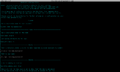 Initial configuration
 -
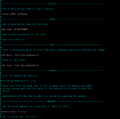 Configuration after making the above changes.
 -
![The last three parameters can be added at the end of the file. Then you can exit the editor mode with [CTRL+X] and confirm with [Y].](//www.thomas-krenn.com/de/wikiDE/images/thumb/6/6e/Graylog_OpenSearch.png/120px-Graylog_OpenSearch.png) The last three parameters can be added at the end of the file. Then you can exit the editor mode with [CTRL+X] and confirm with [Y].
The last three parameters can be added at the end of the file. Then you can exit the editor mode with [CTRL+X] and confirm with [Y].


![The last three parameters can be added at the end of the file. Then you can exit the editor mode with [CTRL+X] and confirm with [Y].](/en/wiki/File:Graylog_OpenSearch.png)
Now the parameters Xms and Xmx must be adjusted. Xmx specifies the maximum memory allocation pool for a Java Virtual Machine (JVM), while Xms specifies the initial memory allocation pool.
nano /etc/opensearch/jvm.options
-
 Initial configuration
 -
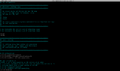 Configuration after assigning half of the available memory capacity to both values.


After saving this file, a parameter for the virtual memory must be set:
sysctl -w vm.max_map_count=262144
echo 'vm.max_map_count=262144' >> /etc/sysctl.conf
Then, as requested earlier, the service can be enabled and started:
systemctl daemon-reload
systemctl enable opensearch.service
systemctl start opensearch.service
Graylog Installation
To install Graylog, first download the package onto the server:
wget https://packages.graylog2.org/repo/packages/graylog-5.0-repository_latest.deb
dpkg -i graylog-5.0-repository_latest.deb
apt update
apt install graylog-server
To access the web interface and connect servers, the Graylog server must be assigned a password and an IP address. In this example, we use http. If these parameters are not set, it is not possible to start Graylog.
First, create a password_secret:
< /dev/urandom tr -dc A-Z-a-z-0-9 | head -c${1:-96};echo;
Also create a root_password_sha2:
echo -n "Enter Password: " && head -1 </dev/stdin | tr -d '\n' | sha256sum | cut -d" " -f1
These two passwords or hash values must be copied from the shell and inserted into the following file:
nano /etc/graylog/server/server.conf
-
![Paste the previously copied hash values into the respective line using [CTRL+U]. Also uncomment root_username and assign a username.](//www.thomas-krenn.com/de/wikiDE/images/thumb/2/2a/Graylog_Server_Passwort.png/120px-Graylog_Server_Passwort.png) Paste the previously copied hash values into the respective line using [CTRL+U]. Also uncomment root_username and assign a username.
Paste the previously copied hash values into the respective line using [CTRL+U]. Also uncomment root_username and assign a username. -
 Assign the IP address configured on the system and a port through which the Graylog web interface should be accessible further down in the file.
![Paste the previously copied hash values into the respective line using [CTRL+U]. Also uncomment root_username and assign a username.](/en/wiki/File:Graylog_Server_Passwort.png)

Afterwards, the Graylog server can be started, and you can connect to the GUI using the IP + Port.
systemctl daemon-reload
systemctl enable graylog-server.service
systemctl start graylog-server.service
Note: To check the status of all services, you can use `systemctl status <Service>`.
To create inputs, follow these steps:
-
 Log in to the web interface with the credentials configured previously.
 -
![Click on [System/Overview] in the tab and select [Inputs].](//www.thomas-krenn.com/de/wikiDE/images/thumb/5/55/Graylog_Reiter.png/120px-Graylog_Reiter.png) Click on [System/Overview] in the tab and select [Inputs].
Click on [System/Overview] in the tab and select [Inputs]. -
![Create a new input by selecting Syslog UDP and then clicking [Launch new input].](//www.thomas-krenn.com/de/wikiDE/images/thumb/a/ab/Graylog_Input.png/120px-Graylog_Input.png) Create a new input by selecting Syslog UDP and then clicking [Launch new input].
Create a new input by selecting Syslog UDP and then clicking [Launch new input]. -
![Assign a Title, configure a bind address, and a Port (under Proxmox VE 8006). Click on [Launch Input].](//www.thomas-krenn.com/de/wikiDE/images/thumb/c/c7/Graylog_Input2.png/53px-Graylog_Input2.png) Assign a Title, configure a bind address, and a Port (under Proxmox VE 8006). Click on [Launch Input].
Assign a Title, configure a bind address, and a Port (under Proxmox VE 8006). Click on [Launch Input].

![Click on [System/Overview] in the tab and select [Inputs].](/en/wiki/File:Graylog_Reiter.png)
![Create a new input by selecting Syslog UDP and then clicking [Launch new input].](/en/wiki/File:Graylog_Input.png)
![Assign a Title, configure a bind address, and a Port (under Proxmox VE 8006). Click on [Launch Input].](/en/wiki/File:Graylog_Input2.png)
Here, for testing purposes, the bind address 0.0.0.0 was configured, so logs from all servers accessible under port 8006 are collected.
Proxmox VE Configuration
You can now begin with the setup on the Proxmox VE side. The rsyslog package must be installed to send logs to the Graylog server:
apt update &&
apt install rsyslog -y
After successful installation, you can use nano to create the following file and insert line 2. For this, the IP address and port must be changed to the previously configured socket:
nano /etc/rsyslog.d/60-graylog.conf
*.*@10.2.1.137:8006;RSYSLOG_SyslogProtocol23Format
If the service has not started automatically, it can be started manually:
systemctl start rsyslog.service
Once both services are running, you can see your collected logs in the web interface, and you have successfully set up a Graylog server. Thus, you can start creating dashboards.
 |
Author: Niklas Pauli Niklas Pauli works in the product management team at Thomas-Krenn. He completed his general university entrance qualification at Freyung High School and then his training as an IT specialist for system integration at Thomas-Krenn.AG. After completing his training, he continued to work in the areas of Proxmox VE incl. Ceph, backup (Proxmox, Veeam, SEP). He is also a regular writer for the Thomas-Krenn-Wiki.
|